After installing Blur Auto Clicker
By Input Notes editorial team Checked against Blur Auto Clicker 3.9.6, released August 24, 2026
Short answer
After installing Blur Auto Clicker, open it from the Start menu, leave the defaults, and test on a blank Notepad window: press Ctrl + Y to start and again to stop. Then check three defaults that surprise people: randomized speed, the screen-edge failsafe and Stop on Alt+Tab. Settings save automatically to %AppData%\BlurAutoClicker.
Install Blur Auto Clicker 3.9.6
Windows
Windows: copy this command.
winget install -e --id Blur009.BlurAutoClicker --accept-source-agreements --accept-package-agreementsPress Win+R, paste with Ctrl+V, press Enter. A window opens, installs and closes; then open the app from Start.
Or download the file directly from the official release:
Download Windows x64 setup (.exe)Also on this release: Portable zip
Verify the download (SHA-256)
GitHub publishes this hash for BlurAutoClicker_3.9.6_x64-setup.exe. It must match exactly.
ef6679d76001656a8a896a2298a38a102e849569b50a856140af6ed243b5a0ea PowerShell: Get-FileHash .\BlurAutoClicker_3.9.6_x64-setup.exe -Algorithm SHA256
64-bit Windows 10 or 11. Setup adds Microsoft WebView2 if it is missing. The installer is not Authenticode-signed, so SmartScreen may ask you to confirm.
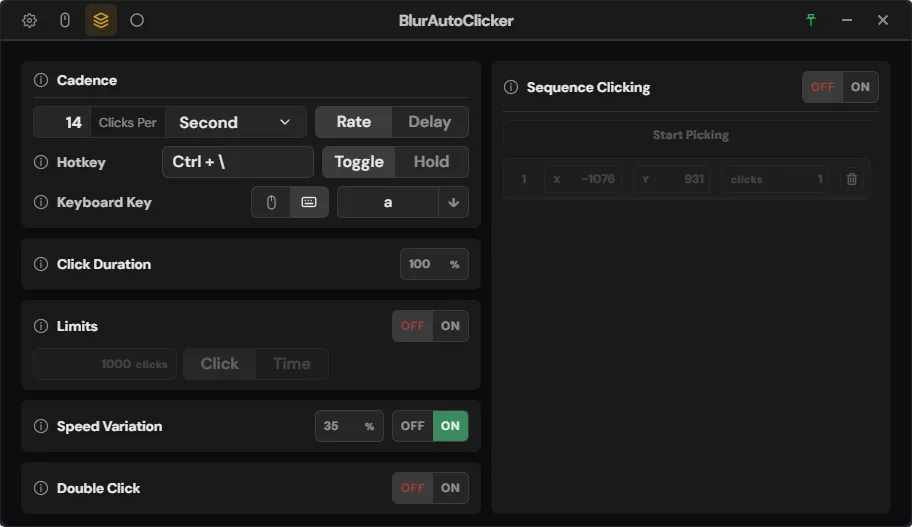
What should I do the first time I open Blur Auto Clicker?
- Open the app. Start Blur Auto Clicker from the Start menu, or run BlurAutoClicker.exe from the portable folder.
- Open a blank test window. Start Notepad, leave it empty, and put the mouse pointer over the middle of its page.
- Run for two seconds. Press Ctrl + Y, let it click briefly, and press Ctrl + Y again; the status bar shows why it stopped.
- Try the failsafe. Start again and flick the pointer to the top edge of the screen; the clicker stops with a Top edge failsafe reason.
- Decide on randomization. On the Simple page switch Speed Randomization off if you need identical gaps between clicks.
- Save a preset. When the settings suit a job, save them as a preset in Settings, Presets so you can switch back later.
Which Blur Auto Clicker settings are already switched on?
A fresh install is not a plain fixed-rate clicker, and knowing that saves a lot of confusion in the first hour. Speed Randomization varies the click speed by 35%, Duty Cycle holds the button for 45% of each cycle, and the corner and edge failsafe stops the run whenever the pointer comes within 50 px of a screen corner or 40 px of an edge. Stop on Alt+Tab ends a run the moment you switch windows. All of these come from the settings schema in 3.9.6, and each can be switched off.
Where does Blur Auto Clicker save its settings?
The installed app saves settings, statistics and presets in %AppData%\BlurAutoClicker as soon as you change something; there is no Save button. The program itself lives in %LocalAppData%\BlurAutoClicker, as the README states. A portable copy keeps the same data in a Data folder next to its exe instead. Deleting the settings folder while the app is closed resets every option to the defaults in the table below.
What does Blur Auto Clicker run automatically?
Out of the box the app does very little in the background. It checks the GitHub releases API for a newer version when it opens and every hour after that, and shows a banner when one exists. It does not start with Windows until you switch on Run on Startup, which writes a single entry to your user's Run key (autostart.rs). Minimize to Tray is off, so minimizing sends the window to the taskbar, and Remember Window Position is on.
| Setting | Default | Where to change it |
|---|---|---|
| Update check | At launch and every hour | Settings, General (Check for update) |
| Run on Startup | Off | Settings, Behavior, Startup |
| Minimize to Tray | Off | Settings, Behavior, Startup |
| Remember Window Position | On | Settings, Behavior, Startup |
| Always on Top | Off | Settings, Behavior |
| Stop Reason Alert | On | Settings, Behavior |
How do I keep a test run from clicking the wrong thing?
Clicks land wherever the pointer is, in whichever window is under it, so the safest first runs happen over an empty document. Keep purchase buttons, delete dialogs, chat boxes and game accounts out of reach until the hotkey feels automatic. If a run gets away from you, throw the pointer at a screen corner; the failsafe stops it even when the hotkey is hard to reach. For long jobs, add a click or time limit from the click speed guide so the run ends on its own.
Back to Blur Auto Clicker for Windows or all guides.