Blur Auto Clicker for Windows
Short answer
Blur Auto Clicker is a free, open-source (GPL-3.0) auto clicker for Windows by Blur009. Install it with winget install -e --id Blur009.BlurAutoClicker --accept-source-agreements --accept-package-agreements or the official GitHub setup file, open it, and press Ctrl + Y to start clicking at 25 clicks per second. Press Ctrl + Y again to stop.
By Input Notes editorial team Checked against Blur Auto Clicker 3.9.6, released August 24, 2026
- Independent guide · not affiliated with Blur009
- Free and open source · GPL-3.0, Windows
- Latest release 3.9.6 · August 24, 2026, official files
Install Blur Auto Clicker 3.9.6
Windows
Windows: copy this command.
winget install -e --id Blur009.BlurAutoClicker --accept-source-agreements --accept-package-agreementsPress Win+R, paste with Ctrl+V, press Enter. A window opens, installs and closes; then open the app from Start.
Package: The README and Microsoft winget-pkgs list this exact package ID.
Or download the file directly from the official release:
Download Windows x64 setup (.exe)Also on this release: Portable zip
Verify the download (SHA-256)
GitHub publishes this hash for BlurAutoClicker_3.9.6_x64-setup.exe. It must match exactly.
ef6679d76001656a8a896a2298a38a102e849569b50a856140af6ed243b5a0ea PowerShell: Get-FileHash .\BlurAutoClicker_3.9.6_x64-setup.exe -Algorithm SHA256
64-bit Windows 10 or 11. Setup adds Microsoft WebView2 if it is missing. The installer is not Authenticode-signed, so SmartScreen may ask you to confirm.
Every file comes from github.com/Blur009/Blur-AutoClicker, the project's own v3.9.6 release, unmodified.
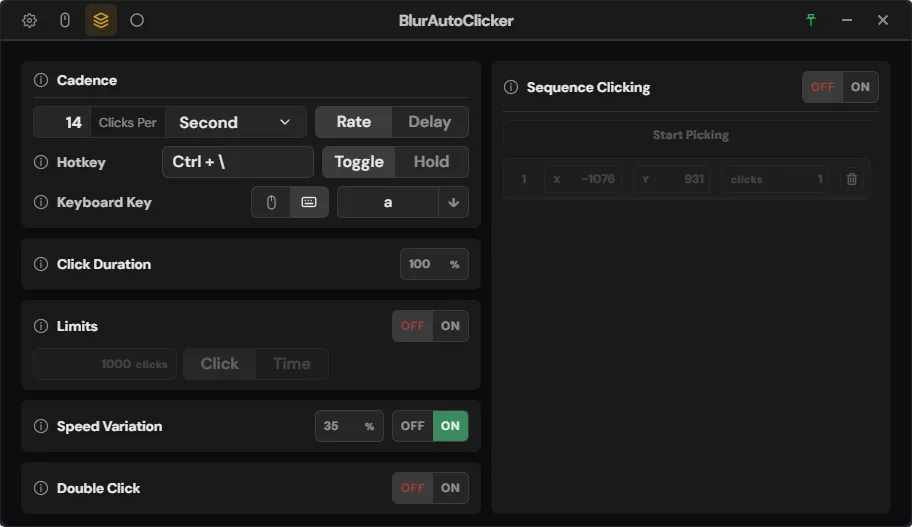
How do I start clicking with Blur Auto Clicker?
- Install the app. Copy the winget command, press Win+R, paste it with Ctrl+V and press Enter, or download the x64 setup file from the official GitHub release and run it.
- Open it from the Start menu. The window opens on the Simple page, with the left mouse button and a rate of 25 clicks per second selected.
- Point at a safe target. Move the mouse over a blank area of an empty Notepad or Paint window.
- Start and stop. Press Ctrl + Y to start, watch a few clicks land, and press Ctrl + Y again to stop.
Blur Auto Clicker needs no configuration for that first run, because a new install already has a hotkey, a mouse button and a rate. The first-run guide goes further: which settings the app switches on for you, where it saves them, and how to keep a test run from clicking something that matters.
What is Blur Auto Clicker?
Blur Auto Clicker is a desktop program that sends repeated mouse clicks or key presses to Windows at a rate you choose. Blur009 develops it in the open on GitHub, where 2,072 people have starred the repository, and ships it as a Windows installer and a portable zip. Its main pitch in the README is accuracy: set 50 clicks per second and it delivers 50, where many clickers drift above or below.
Free and open source
GPL-3.0 license, full source on GitHub, no ads or accounts.
Windows only
An x64 installer and a portable zip; there is no Mac or Linux build.
Up to 500 CPS
The normal speed ceiling, with an optional 1000 CPS mode.
The window has five pages you can switch with keys 1 to 5. Simple holds the rate, hotkey, mouse button or keyboard key, and the Hold or Toggle choice. Advanced adds duty cycle, randomization, click and time limits, and double clicks. Zones holds the corner, edge and custom stop areas, Click Points holds a list of screen positions, and Settings covers behavior, startup, appearance, keybinds and presets.
Which Blur Auto Clicker download should I choose?
All three routes install the same 3.9.6 program from the developer's own release; they differ in how you install, where settings live and how updates arrive. Choose winget if you already use it for other apps, the setup file for a normal install, and the portable zip for a folder you can carry.
| Route | What you get | Size |
|---|---|---|
| winget | Exact package Blur009.BlurAutoClicker, same installer and hash as GitHub | 7.8 MB |
| x64 setup (.exe) | Per-user install in %LocalAppData%\BlurAutoClicker with the in-app updater | 7.8 MB |
| Portable (.zip) | Runs from any folder and keeps settings beside the exe | 9.5 MB |
Each file's SHA-256, the SmartScreen prompt and the hash command are on the Windows install page. The portable or setup comparison covers the portable marker file and how the two builds store data.
What settings does a new install start with?
These are the values a fresh 3.9.6 install uses, read from the app's settings schema. Three of them surprise people: randomization and duty cycle are already on, and the pointer stops the clicker near any screen edge.
| Setting | Default | Guide |
|---|---|---|
| Start and stop hotkey | Ctrl + Y, Toggle mode | Hotkey guide |
| Click speed | 25 per second, left button | Click speed guide |
| Speed Randomization | On, 35% | Click speed guide |
| Duty Cycle | On, 45% | Keyboard mode guide |
| Corner and edge stop | On, 50 px corners, 40 px edges | Click Points guide |
| Stop on Alt+Tab | On | Hotkey guide |
What does Blur Auto Clicker need to run on Windows?
Blur Auto Clicker needs 64-bit Windows and Microsoft WebView2, which draws its window. The setup file installs WebView2 silently if it is missing, and the portable zip bundles the WebView2 bootstrapper and the Visual C++ runtime, according to the build config and the changelog.
The winget manifest marks the installer as a per-user install, so it goes into %LocalAppData%\BlurAutoClicker for your Windows account only, and settings and click statistics are kept in %AppData%\BlurAutoClicker. Expect around 100 MB of memory while the window is open. There is no 32-bit, ARM, Mac or Linux build on the release page.
How do I update or uninstall Blur Auto Clicker?
An installed copy of Blur Auto Clicker checks GitHub for a newer release when you open it and every hour after that, and offers the update inside the app. The portable build has no in-app updater, so you replace its folder with the newer zip yourself; its Data folder holds your settings.
| Task | Command |
|---|---|
| Update to the newest winget version | winget upgrade -e --id Blur009.BlurAutoClicker |
| Remove Blur Auto Clicker | winget uninstall -e --id Blur009.BlurAutoClicker |
Both commands are standard winget verbs documented by Microsoft for upgrade and uninstall. You can also remove it from the Apps section of Windows Settings. For a clean slate afterwards, delete %AppData%\BlurAutoClicker, where your settings and presets are saved.
Which Blur Auto Clicker guide answers my question?
Each guide covers one job and opens with a short answer. To change the start key or choose Hold instead of Toggle, read the hotkey guide. For an exact rate, a slow schedule or an automatic stop, use the click speed guide. To click saved spots on screen, follow Click Points, and to repeat a key instead of a click, use keyboard mode.
If you are unsure about the download itself, is Blur Auto Clicker safe explains the unsigned installer, what the app connects to and how to handle an antivirus warning. Game and website rules are a separate question: many online games forbid automated input, so check them before you point any clicker at an account you care about.
Frequently asked questions
Is Blur Auto Clicker free?
Yes. It is free and open source under the GNU GPL-3.0 license, with no ads, accounts or paid tier. The developer accepts optional donations through Ko-fi, linked from the app's Settings page.
How much memory does Blur Auto Clicker use?
The developer states in the README that it uses around 100 MB of RAM and stays under 200 MB. The interface runs on Microsoft WebView2, which accounts for most of that memory.