Short answer
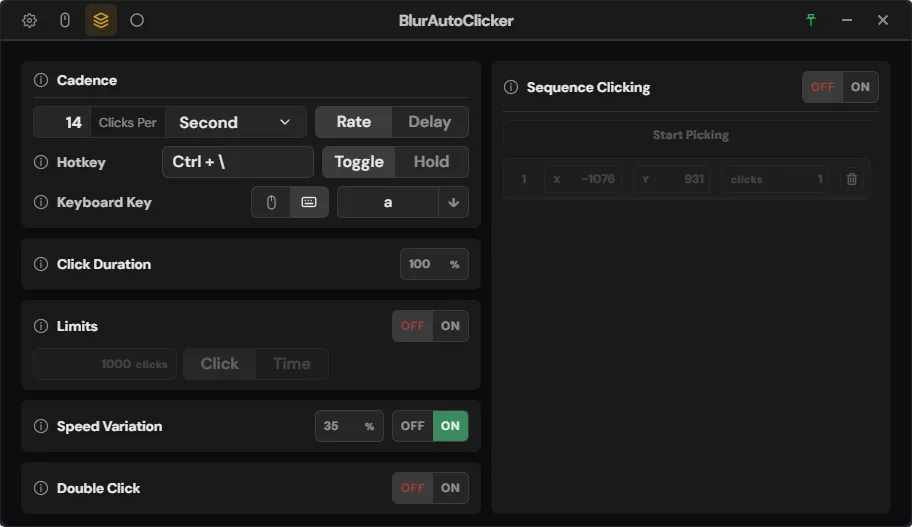
Blur Auto Clicker starts and stops with Ctrl + Y by default, in Toggle mode: press it once to start clicking and again to stop. To change it, click the hotkey box on the Simple page and press a new combination. Choose Hold in the drop-down beside it to click only while the keys are down.
How do I change the start and stop hotkey?
- Open the Simple page. Launch Blur Auto Clicker and press 1, or click the Simple tab in the title bar.
- Click the hotkey box. The box shows Ctrl + Y on a new install; clicking it stops any running clicker and waits for keys.
- Press the new combination. Hold the modifier keys and press the main key; the box shows left and right modifiers separately.
- Pick Toggle or Hold. Use the drop-down next to the hotkey box. Toggle starts and stops on separate presses; Hold clicks only while the keys stay down.
- Test the stop. Put a blank Notepad window in front, start for two seconds, stop, and confirm the status bar says the clicker stopped.
What is the default Blur Auto Clicker hotkey?
The default start and stop hotkey is Ctrl + Y, and the default activation mode is Toggle, as set in the app's settings schema for 3.9.6. Many editors also use Ctrl + Y for Redo, so pick a combination the target program ignores. Since version 3.9.6 a hotkey can combine up to five main keys, and left and right Ctrl, Shift or Alt count as different keys.
Should I use Hold or Toggle activation?
Hold is the safer choice while you learn the app, because releasing the keys always ends the run. Toggle suits long runs where holding a key is tiring, but the clicker keeps going until you press the hotkey again or a stop rule fires. Two stop rules are on by default: Stop on Alt+Tab, added in 3.8.0, and the corner and edge failsafe on the Zones page, which stops clicking when the pointer is within 50 px of a screen corner or 40 px of an edge.
Why does my hotkey not start the clicker?
Check the title bar first. If it reads MASTER OFF, the master switch from version 3.9.5 is blocking every start until you toggle or hold its own keybind, set under Settings, Keybinds. Next, open Settings, Behavior and look at Strict Hotkey Modifiers: when it is on, pressing extra modifiers with your combination does not count. Finally, another program may already own the same shortcut, so try a combination with a different main key.
Which other keybinds does the app have?
Keys 1 to 5 switch between the Simple, Advanced, Zones, Click Points and Settings pages, a feature added in 3.9.0. The Keybinds section of Settings also accepts optional keys for toggles such as speed randomization, duty cycle, limits and click points; all of them are empty on a new install, so nothing changes until you assign one.
| Control | Default | Where to change it |
|---|---|---|
| Start and stop hotkey | Ctrl + Y | Simple page, hotkey box |
| Activation mode | Toggle | Drop-down beside the hotkey |
| Page keys | 1 to 5 (Simple to Settings) | Settings, Keybinds |
| Master switch keybind | None | Settings, Keybinds |
| Stop on Alt+Tab | On | Settings, Behavior |
| Strict Hotkey Modifiers | Off | Settings, Behavior |
Frequently asked questions
Can a mouse button be the hotkey?
Yes. The hotkey box accepts mouse buttons as well as keys, and the 3.9.6 changelog notes that left and right click can now be combined in one hotkey. Avoid a button you also need for normal clicking.