Short answer
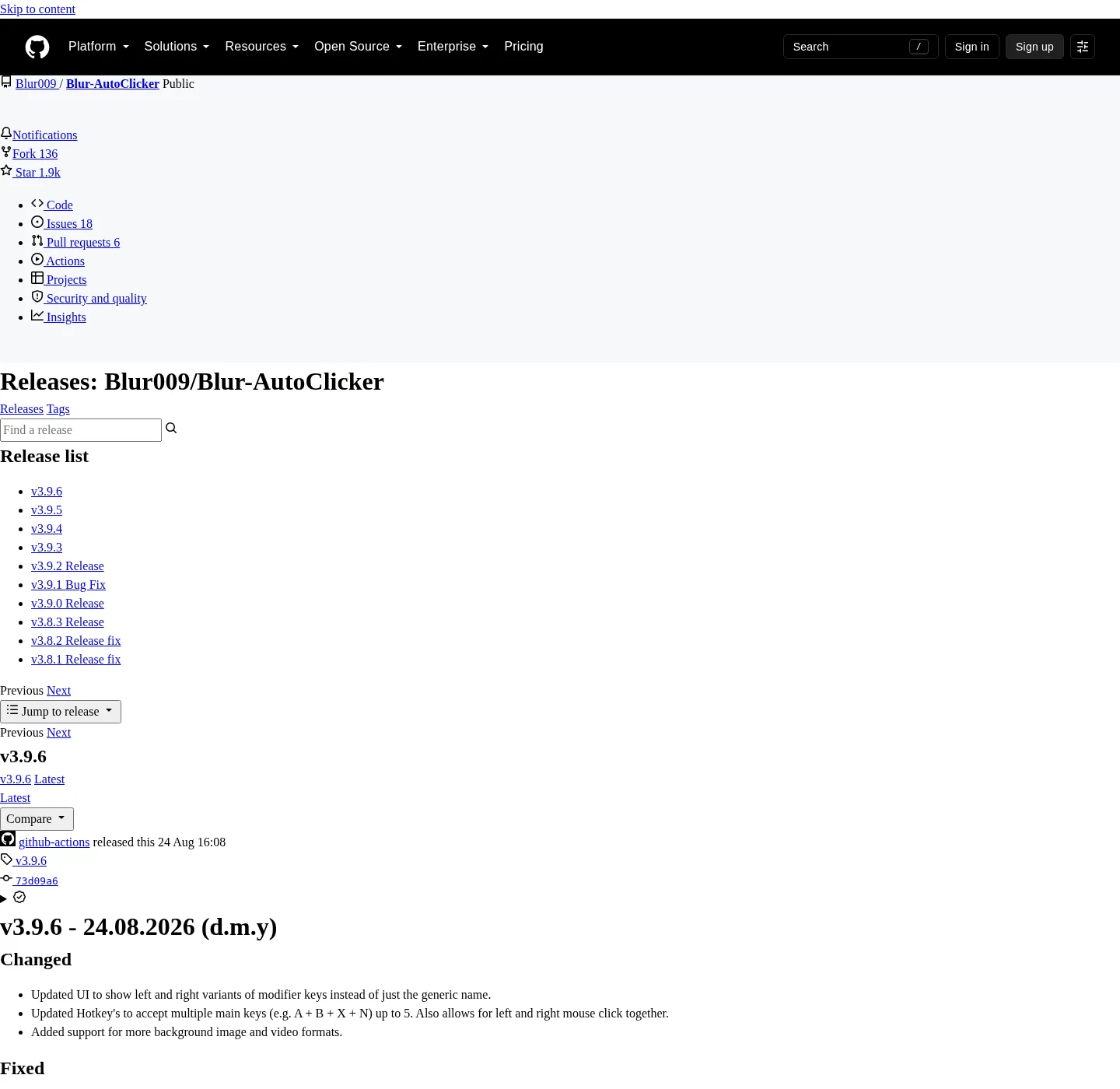
Choose the setup file for a normal install with in-app updates. Choose the portable zip (9.5 MB) to run Blur Auto Clicker from any folder: its portable.txt marker keeps settings, logs and WebView2 data in a Data folder beside the program, and it never adds itself to Windows startup.
How do I set up the portable version?
- Download the portable zip. On the GitHub release page choose BlurAutoClicker-v3.9.6-portable.zip.
- Extract the whole zip. Right-click it, choose Extract All, and pick a folder you can write to, such as one in Documents or on a USB drive.
- Keep portable.txt beside the exe. The extracted folder must still contain portable.txt with the text BlurAutoClicker Portable Mode.
- Run the program. Double-click BlurAutoClicker.exe in that folder; the version label ends in portable.
- Check the Data folder. After closing the app, confirm a Data folder now sits next to the exe.
What is the difference between the setup and portable versions?
Both packages run the same program; only storage, updates and startup differ. The setup file installs into %LocalAppData%\BlurAutoClicker and keeps settings in %AppData%\BlurAutoClicker. The portable build keeps everything in its own folder since version 3.9.2, bundles the Visual C++ runtime files and WebView2 bootstrapper, and replaces the in-app updater with a Download from GitHub button.
How does portable mode keep its settings in one folder?
At launch the program looks for a file named portable.txt next to its own exe and reads it (portable.rs). When the file contains exactly BlurAutoClicker Portable Mode, settings, statistics, diagnostics and WebView2 user data go into Data beside the exe. The official zip already includes the marker, written by the project's packaging script. Delete or rename the marker and the same exe falls back to the installed paths in AppData.
Can I run the portable and installed copies together?
Avoid it. Each copy listens for its own hotkey, and with the default Ctrl + Y in both, one key press can start two clickers at once. Close one before opening the other. If you are moving from the installed copy to portable, note your settings, uninstall from Windows Settings, Apps, and set the portable copy up fresh, because the two keep separate settings files.
| Setup (.exe) | Portable (.zip) | |
|---|---|---|
| Download size | 7.8 MB | 9.5 MB |
| Program location | %LocalAppData%\BlurAutoClicker | Any folder you extract to |
| Settings and logs | %AppData%\BlurAutoClicker | Data folder beside the exe |
| Updates | In-app updater | Download from GitHub button |
| Run on Startup | Available, off by default | Not available |
| Removal | Windows Settings, Apps | Delete the folder |
Frequently asked questions
Does the portable version need installing WebView2?
Only if Windows lacks the WebView2 runtime. The portable zip bundles Microsoft's WebView2 bootstrapper and starts it when the runtime is missing. Windows 11 already includes the runtime, so most PCs skip that step.